[Pylon 101] Setting up Account Intelligence [WIP]
Last updated: May 27, 2026
Overview
The below guide should help you better understand how to get started with Pylon's Account Intelligence features. At a glance, a good framework to keep in mind is that:
Account Notebooks should be the place where you create targeted summaries for different use cases and internal stakeholders
AI-Filled Fields use the context provided by Account Notebooks to categorize it into structured data for high-level views and reporting
Formula Fields combine AI-filled fields, any other structured data you pull into Pylon (like customer tier or usage data), and other quantitative data from within Pylon (e.g. counts of issues or survey scores) for any additional summary or analysis needed. The most common example would be a health score.
Once you've configured these three areas, you can use them to build out Analytics dashboards and create Account Views that function as landing pages for different personas like Account Executives, CSMs, or their managers.
Phase 1: Sync in Relevant Data Sources
Even without any configuration or additional integrations set up, Account Intelligence features will have access to all of the Issue data you have logged in Pylon. Some common sources you may want to set up on top of this are:
Recorded meetings via a Call Recording integration
Context from customer-specific internal slack channels
Messages sent to individual email inboxes
All meeting dates based on relevant team member's calendars
Metadata available to sync from your CRM (such as customer tier and stage, CSM and other personas, etc)
Usage data via a reverse ETL sync. Note that if you're already syncing this to your CRM, you can instead pull it natively via the CRM sync!
Phase 2: Start configuring Account Notebooks
Account Notebooks are your way of creating tailored deep dives into an account. We recommend setting up multiple notebooks tailored towards different use cases, such as:
Sales to CSM Handoff
Meeting Prep
Account Health Deep Dive
The most powerful part of notebooks is the ability to create AI Text blocks that can use a mix of structured and unstructured data to create targeted summaries.
AI Text Block Tips and Tricks
Utilize explicit variables and filters where possible vs. plain text summaries
DO say: "Reference
{{account.custom_field.customer_stage}}"DO set a filter for "Last 90 Days" or source = meetings
DON'T say: "Reference the customer stage field when generating this summary"
DON'T say "look at only meeting data" in plain text in the prompt
Avoid full system prompts in favor of more casual descriptions
DO say "Summarize the top feature requests for this customer, taking into account repeat mentions and level of urgency expressed"
DON'T say: "You are an expert in product management and development, designed to identify and categorize customer requests by feature area. Across all calls, issues, and internal discussions, identify the top 3 requests sorted by......"
Don't categorize the data explicitly yet.....that comes next with AI-filled fields! Think of this instead as fetching all the relevant information you would then use to create a categorization.
DO say "Analyze the customer's sentiment by identifying expressions of excitement or frustration. Focus primarily on sentiment trends from the past few months to provide an up-to-date assessment. Return a paragraph describing the overall sentiment trends. Keep this brief and concise to 4 sentences maximum."
DON'T add on "Categorize this into green, yellow, and red, based on the following criteria....."
Phase 3: Set up AI-filled fields
AI-filled fields are the primary way to extract data from an Account Notebook up into a summary level view. The best way to configure these is to give them access to a specific notebook block (or blocks). Just like with AI Text Blocks, you should avoid thinking of these as full system prompts and instead think of them as casual, plain-text descriptions. A good reference point is our default "Sentiment" template:
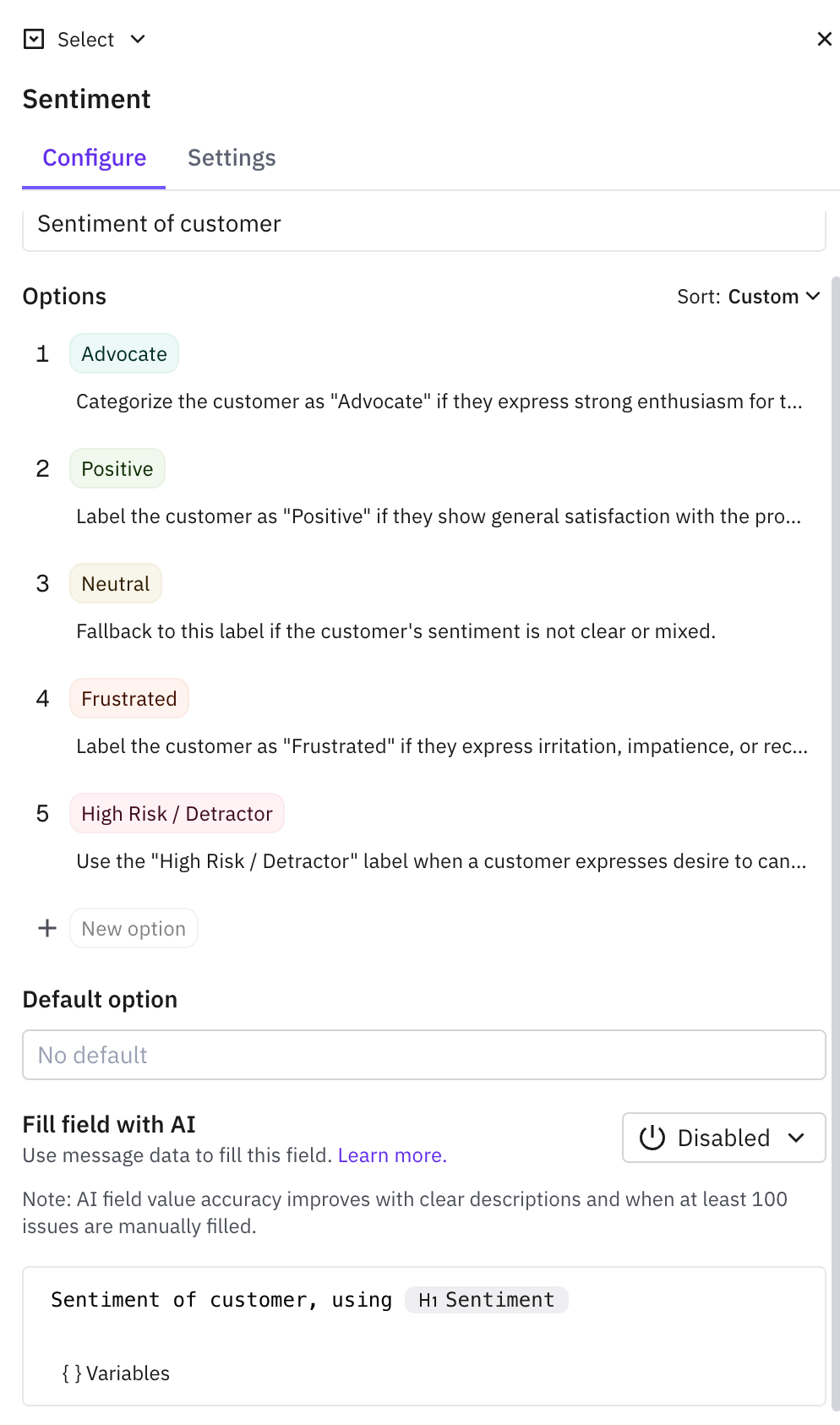
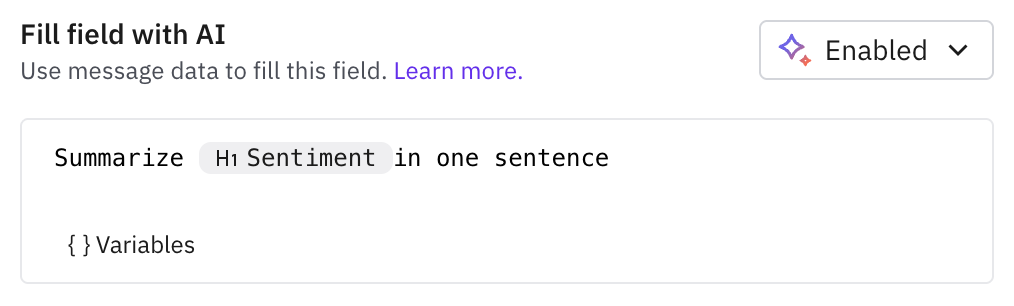
A text-type field to summarize sentiment for easy scanning
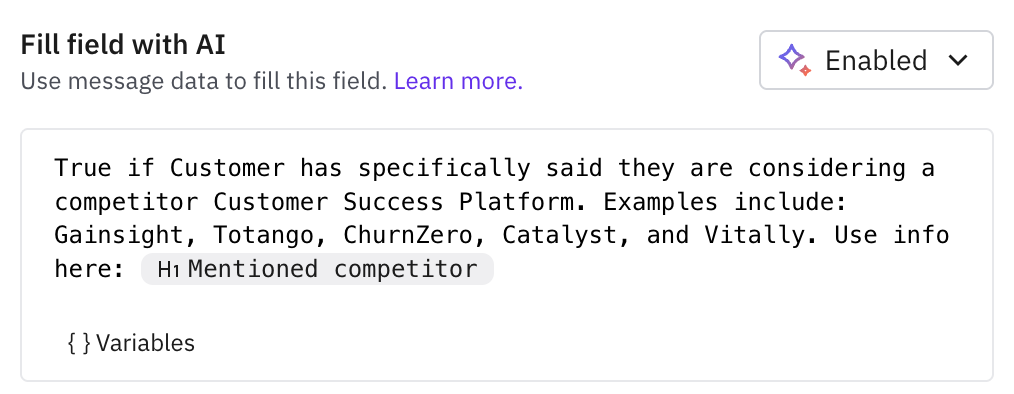
A boolean field that detects whether a competitor has been mentioned before based on a notebook block
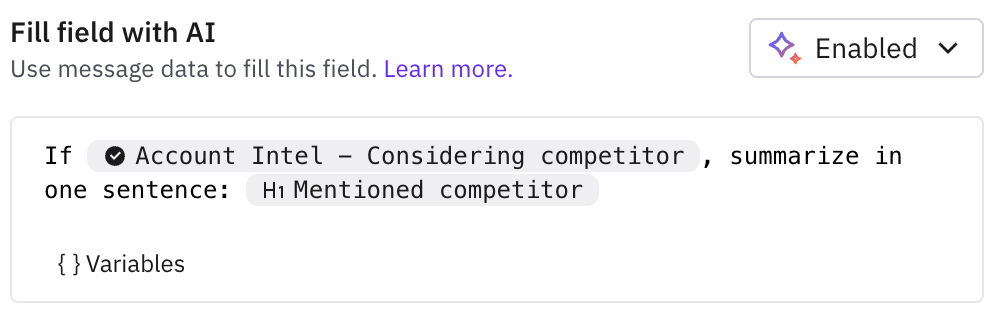
A text-type field that references both an account field (for example, the boolean field above) as a filter and an account notebook block to create a short summary
Phase 4: Configuring Formulas (Health Scores, Issue Data Summaries, Survey Score Summaries, etc)
Formula fields combine AI-filled fields with other structured data for additional analysis, like the usage data you may have synced in prior. One easy way to start is by using Pylon's built-in formula templates. To do this, you can scroll all the way right in an account view, press "Add Columns", then choose Formula. We recommend starting with many of the existing formulas as a jumping off point before then modifying it to reference additional relevant information you have synced into the system.

For a longer list of examples, check out the article on 📄 Getting started: Formulas.