How do I integrate Gong with Pylon?
Last updated: October 7, 2026
Make sure you are a Gong administrator before going through the app install process.
Go to the Integrations Directory page
Click on the Gong app and hit Connect. Make sure an admin is the one to authenticate. Best practice is to install using an IT service account.
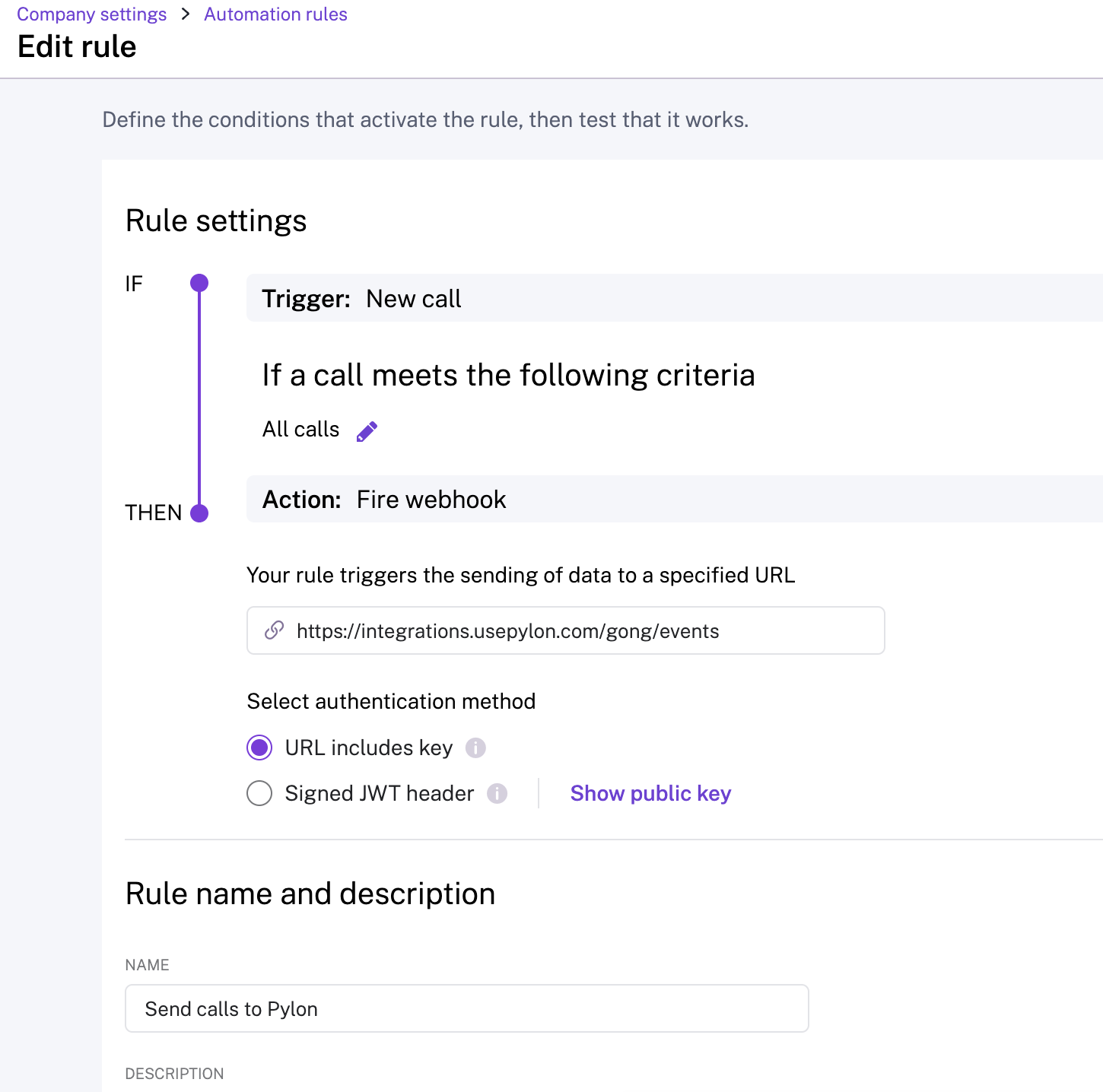
Follow the Gong instructions here to set up a webhook rule that will send your call recordings to Pylon
Be sure to apply the appropriate filter for your calls to select which calls to send to Pylon. Filtering is controlled via these Gong webhook rules rather than in Pylon.
The destination URL is https://integrations.usepylon.com/gong/events
For specifically EU-data requirements the URL is https://integrations.eu.usepylon.com/gong/events
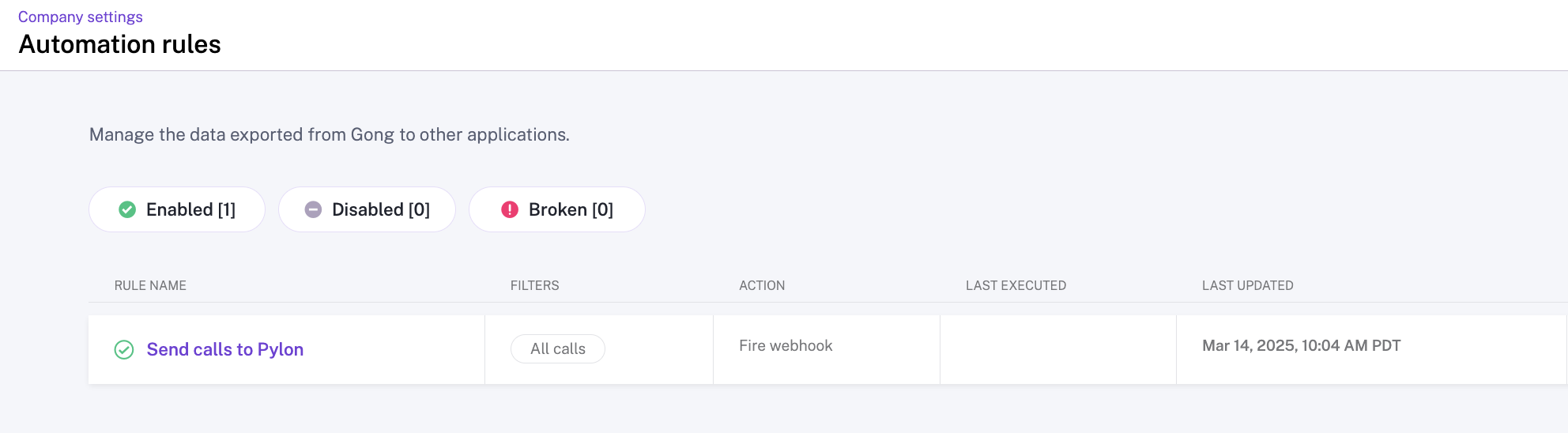
Check enabled when creating the rule, or enable it from the automation rule dashboard on Gong afterwards
Hit test at the bottom of the page and refresh the Pylon Gong integration page, verify that your call has been ingested into Pylon.
When you connect the Gong integration, Pylon performs both a historical import (backfill) of past calls and sets up ongoing sync for new calls. The initial connection triggers a one‑time fetch of recent calls, while the webhook you configure in step 3 enables near‑real‑time ingestion of new calls going forward. The backfill process may take some time to complete, so you may see older calls appearing gradually alongside recent ones as the historical data is imported.
Once Gong is connected, calls will start to backfill into Pylon. Any calls that are marked as private in Gong will be ignored. All synced calls will be available to admins on the Gong Integration. Calls are matched to Pylon accounts when attendee email addresses match existing Pylon account domains. Synced calls appear in the Activity tab in the Account sidebar (next to Highlights). Click into a call to view its summary and transcript. Calls are also cited in AI‑generated summaries. Calls that show a "Connected" badge are additionally linked to an event on a Google Calendar connected to Pylon.
Note: To protect participant privacy, on the call list in the Gong integration page in Pylon, you will only be able to see calls which you were a participant in. Calls from other members of your team in Gong will still be pulled in and attributed to the correct Pylon account.
Troubleshooting
If new calls are not appearing in Pylon after connecting the Gong integration:
Confirm the Gong webhook is enabled so new call events can reach Pylon.
Verify that participant email domains on the calls match your Pylon account domains so calls link to the correct accounts.
Send a test event from the webhook to confirm it reaches Pylon.
Check that the webhook rule isn’t filtering out calls (e.g., specific users, call types, or teams).
Trigger a fresh test call to update the status – the integration will show active only after receiving at least one call via the webhook.
Allow up to an hour for the status indicator to refresh after making changes.
Important: Reauthorizing the Gong connection will pull in historical calls, but the webhook rule must be configured within Gong to pull new calls in on an ongoing basis.
If calls are not automatically attaching to accounts:
For calls to automatically attach to the correct accounts, participant email domains on the calls must match your Pylon account domains.
There must be a single unambiguous account per domain at the time of call ingestion. If multiple accounts claim the same domain, the call will be left unattached and won't appear in the account's meetings or activity log. Once duplicate accounts are merged, new Gong calls with participants from that domain will auto‑attach correctly going forward. Note that previously unattached calls will remain unattached even after merging accounts. To manually attach these calls: open the call, click the three‑dot menu in the upper right corner, select “Add Account”, and choose the appropriate account.