How to Mark a Ticket as Spam
Last updated: October 7, 2026
Marking a Ticket as Spam
To mark an email-based ticket as spam:
Open the ticket you want to mark as spam.
Click on the three dots menu at the top of the ticket view.
Select "Mark as Spam" from the dropdown menu.
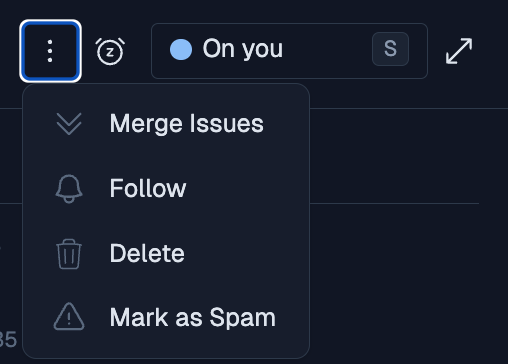
Once you mark a ticket as spam, the sender will be automatically blocked from sending further emails.
Note: The "Mark as Spam" feature is only available for tickets that originate from emails.
Availability and limitations
The Mark as Spam option is intended for email-originated tickets. It is not currently available for tickets created from the chat widget.
This is because marking a ticket as spam blocks future emails from the sender or domain.
When you mark a ticket as spam, the ticket is deleted from Pylon. A record of this deletion is created in Settings > Audit Logs for your reference and if mistakenly marked, can be recovered from this location.
Managing Blocked Senders
If you need to review or modify the list of blocked senders:
Go to Settings in Pylon
Navigate to Integrations > Email > Blocked Emails
Here you can view blocked and spam email addresses and unblock any email addresses that were incorrectly marked as spam