How do I automatically invite team members into my customer Slack channels?
Last updated: October 8, 2026
You can configure a trigger to automatically invite all members of a Pylon Team to Slack channels associated with an account. This ensures everyone has access to important customer communications.
Understanding Pylon's Slack Integration
Team members don't technically need to be in customer Slack channels for Pylon to work.
When Pylon users respond to conversations, the Pylon bot posts messages into the customer's Slack channel on their behalf, with the message appearing under the Pylon user's name even though that user is not a member of the customer's Slack workspace or channel.
Only the Pylon bot needs to be invited to the channel and the channel needs to be enabled as an official Customer Channel. That said, you may wish to be present in the channel for:
More personal experience - Replies come from a real team member's name rather than an app/bot label.
Private channel access - Pylon mirrors Slack permissions, so users must be in a private channel to see it in Pylon.
Workflow flexibility - Some teams prefer that members can reply directly in Slack instead of switching into Pylon.
Pylon supports both approaches: bot-only in channels or having team members present.
If you want to automatically invite team members, follow the instructions below.
Important: To add a team member to a customer Slack channel, their Pylon user must be linked to an active Slack user in the same workspace as the channel.
Go to Settings > Triggers
Create a new trigger or edit an existing one
Set the trigger condition to fire when a new Account is created
Add an action to "Invite Team"
Optionally, add filters to control which accounts trigger the invitation (e.g., by account type, region, or other criteria)
Inviting specific users based on account owner
The "Invite Team" action can only invite entire teams, not individual users. To invite specific users based on account ownership, you'll need to:
Create separate sub teams for each user in Settings > Teams
Create multiple triggers, one for each account owner
In each trigger, add a filter condition: "if account owner = [specific user]"
Set the action to invite the corresponding sub team for that user
This trigger will only apply to newly created channels. For existing channels, you'll need to manually invite team members or use the bulk invite feature.
Bulk Onboarding Employees
You can add users to Slack channels in bulk.
1. Go to Settings > Users
2. In the top right select the horizontal ellipsis and select 'Bulk add to channels'
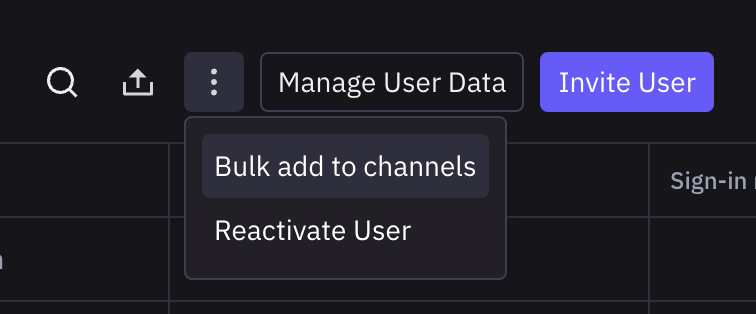
3. Select the employee(s) and the channels you want to add them to
4. Complete the bulk addition process
For private Slack channels, you may need to first invite Pylon to the channel directly in Slack using the /invite command before you can add users through Pylon.
If you are trying to add a user who was recently added to Slack, they might not appear immediately. Pylon syncs the user list from Slack approximately daily. Please reach out to the Pylon team to refresh this data.