How do I serve customers in different languages?
Last updated: October 9, 2026
Pylon supports multilingual customer experiences across your Knowledge Base, Customer Portal, Chat Widget, Email, and Forms.
Setting Up Your Supported Languages
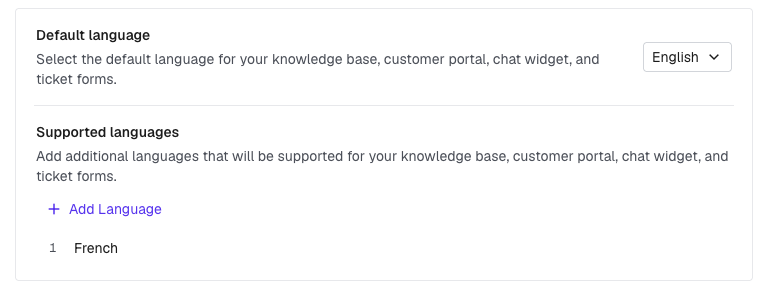
Go to Languages in Settings.
Set your default language — the primary language your company operates in.
Add supported languages — the additional languages your customers can view content in across mediums.
All static strings and dynamic content will be translated - your customers will be able to pick their language of choice within each source and be defaulted to your default language. Pylon will try to intelligently determine your customer's language of choice wherever possible, using their browser preferences and past interactions.
If you would like to use a Partially Supported language, please reach out to the Pylon team and we can support you.
Custom Translations
For full control over customer-facing text, use Custom Translations.
Override any static string across Chat Widget, Email, Forms, Portal, and Slack
Provide translations per language for each string
Knowledge Base Translation
Write articles once in your default language, and Pylon's AI keeps copies in your other supported languages up to date automatically.
When you publish or update an article, translations are generated automatically
You can also manually edit translations
Auto-Translating Messages
If you receive messages from customers in languages you don't speak, Pylon can automatically translate them for you.
Note: Auto-translation requires the AI Assistants bundle to be enabled in your workspace. If AI Assistants is not enabled, translation will not run.
Go to your Profile page.
Under Message language, select your preferred language. Messages in other languages will be automatically translated to your selected language using AI. The original message is always preserved — the translation appears alongside it so you never lose context.
Any messages you send will also get translated on-the-fly to the customer's language.