How can my customers set priority on a Pylon issue?
Last updated: June 5, 2025
To allow customers to indicate ticket priority and send alerting integration notifications (such as PagerDuty/Opsgenie alerts), you can use Pylon's reaction triggers. This guide will walk you through setting up this system using Slack reactions.
Reaction-Based Priority Triggers
Go to your Pylon dashboard and navigate to the Triggers section.
Create a new trigger for each priority level you want to offer (e.g., High, Medium, Low).
For each trigger:
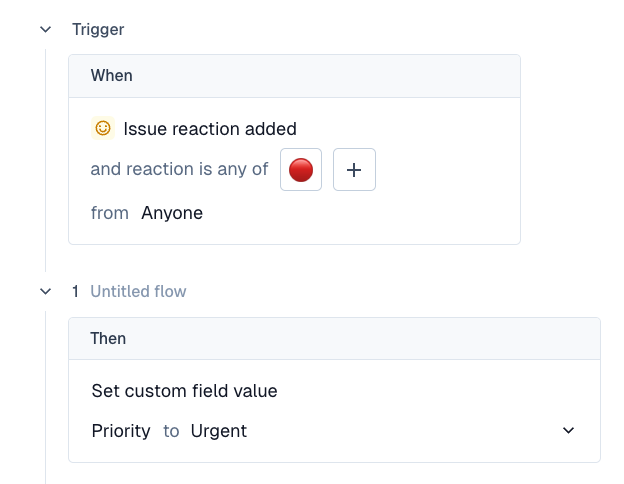
Set the kickoff event to "Issue reaction added".
Choose a specific emoji for each priority level (e.g., 🔴 for High, 🟡 for Medium, 🟢 for Low).
Set the action to "Set custom field value" and select the priority field.
Set the corresponding priority value (High, Medium, or Low).
Explicit Priority form
Setup a ticket form workflow in Slack with Priority as a dropdown option. See 📄 How do I send a ticket form in Slack? for details!
Integrating with Alerting services
To send notifications to (PagerDuty, Opsgenie) based on priority:
Set up your Alerting integration by following our PagerDuty setup guide.
Create additional triggers/trigger actions to 'Alert on issue' that activate based on the priority field being set to a specific value