[Pylon 101] Setting up your first AI Agent
Last updated: April 3, 2026
Pylon's AI Agents are great at being your first line of defense, triaging issues and answering those high volume, low complexity issues that can end up bogging down your Support teams.
To get up and running, follow these steps to get your first Agent off the ground. From there, we have a wealth of resources available for you to tweak, iterate and improve your Agent's performance.
Create an Agent
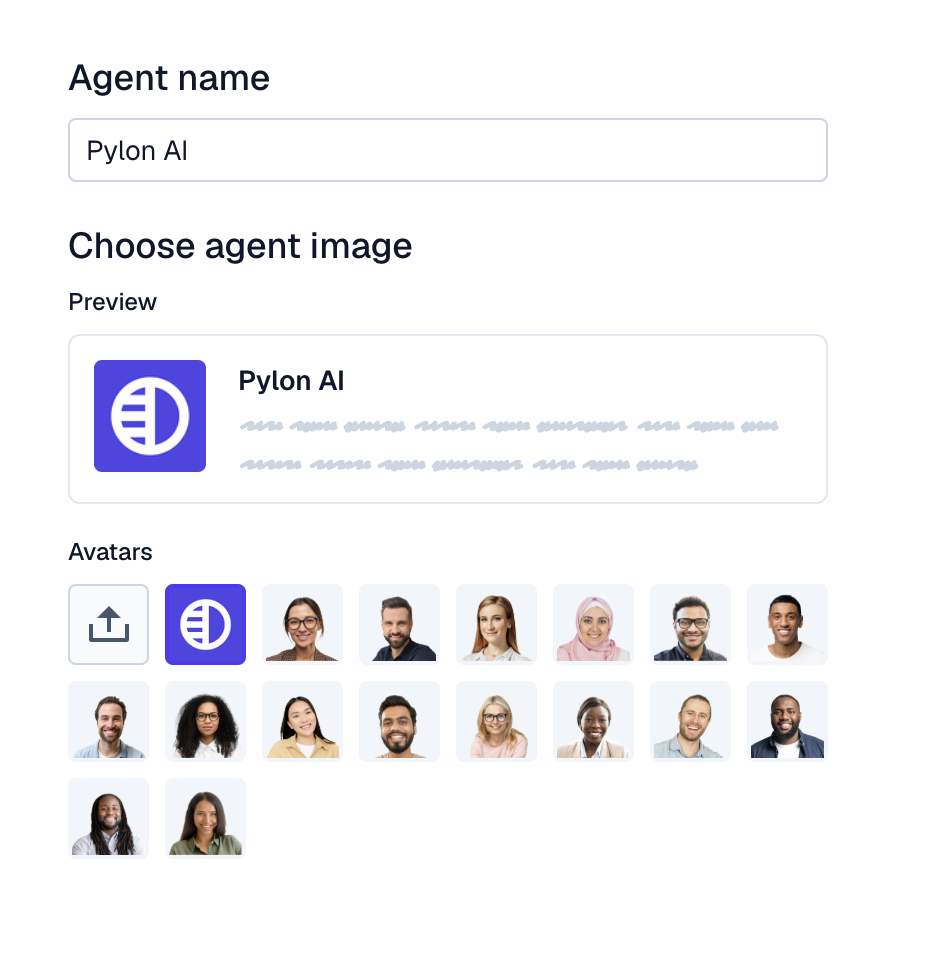
Navigate to Settings > Agents (under AI Controls) and click Create Agent. On the first page, name your Agent and choose (or upload) an avatar.
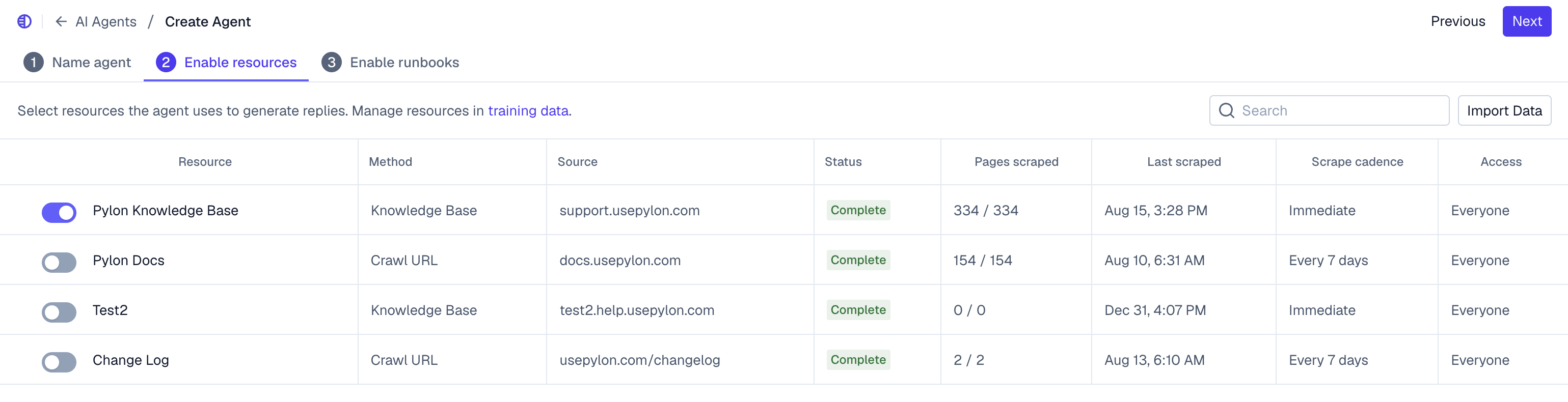
On the next page, select the resources you want the Agent to have access to. Once you've added your training data resources, verify they show as "Complete" status with the number of pages scraped displayed - this confirms they're ready to be referenced by your AI agent. This will basically make up the "brain" of the agent. The better the resources, the better the Agent will perform. Learn more about training resources here.
More resources do not equal better performance! Make sure the resources you are providing are clear and concise, and do not add resources with overlapping information.
Click next. Skip the runbooks for now. We recommend that customers utilize just the AI Agent in deflection mode before complicating things with Runbooks. Learn more about the use cases of runbooks here. Click Create Agent.
You've just created your first AI Agent. Congratulations!
Configuring your AI Agent
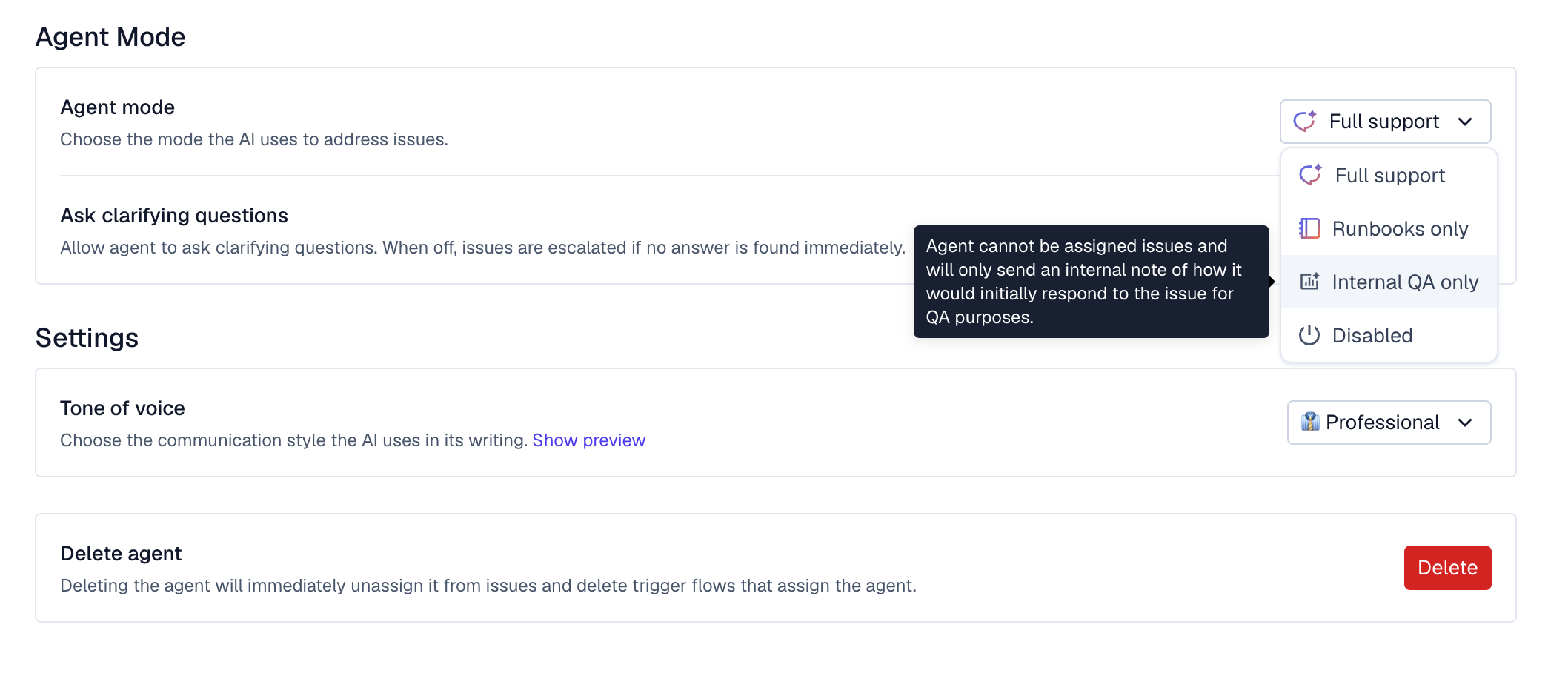
In your Agent settings, change the Agent mode to Internal QA only. This will allow you to test the Agent performance.
Leave it on All new issues so you can get an idea of how the Agent performs on a variety of incoming issues.
Configure general guidelines and behavior rules in your Agent settings under Agent Persona/Settings (in the Agent Background field), not in Runbooks. Use this for high-level do's and don'ts, tone rules, and behavior guidelines. Runbooks are specifically for conditional "if this, then that" workflows.

In Internal QA mode, the agent will simply put an internal note with what it would have responded with on the issue thread. This allows you to "QA" the Agent performance without actually revealing itself to customers and answering questions.
Testing your Agent
Once Internal QA mode it turned on, monitor your incoming issues for the next couple of days (or until you get a decent sample size of issues that the Agent is able to run on).
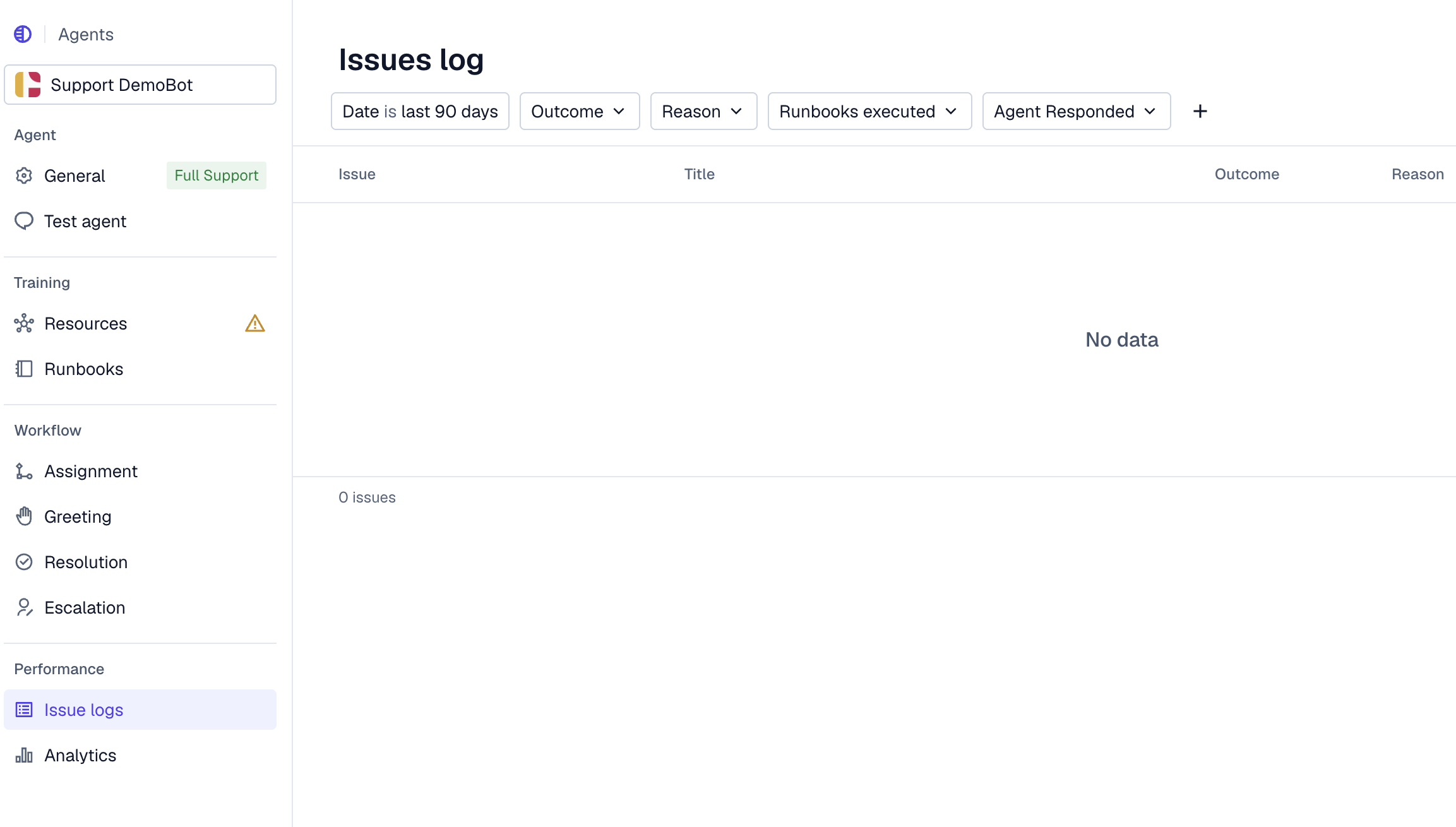
As you see the Agent respond to issues, note common patterns or issues that you see the Agent struggling with. Our Issues log is a great resource to dig deeper into why and how an Agent responded or escalated.
Improving your Agent
Now that you have a baseline on how your Agent performs, there are various levers and configuration to play around with to improve how the Agent performs, as well as shape and guide how it responds to questions. Navigate to this page to view a list of all the different rules and settings that are available to you.
Turning On Your Agent
Once you feel comfortable with the performance of the Agent, you can go ahead and let the Agent start responding to customers. Navigate to Agent Settings and switch Agent mode to Full Support.