How do I connect a custom MCP to Pylon?
Last updated: August 29, 2026
You add your own internal tools as MCP connections into Pylon for use within Pylon's AI features like Ask AI or the Issue Copilot.
Setup
Go to the MCP section of the Integrations page.
Click on Add MCP Connector
Fill in the required details based on either the third party's MCP documentation or your own internal MCP details.
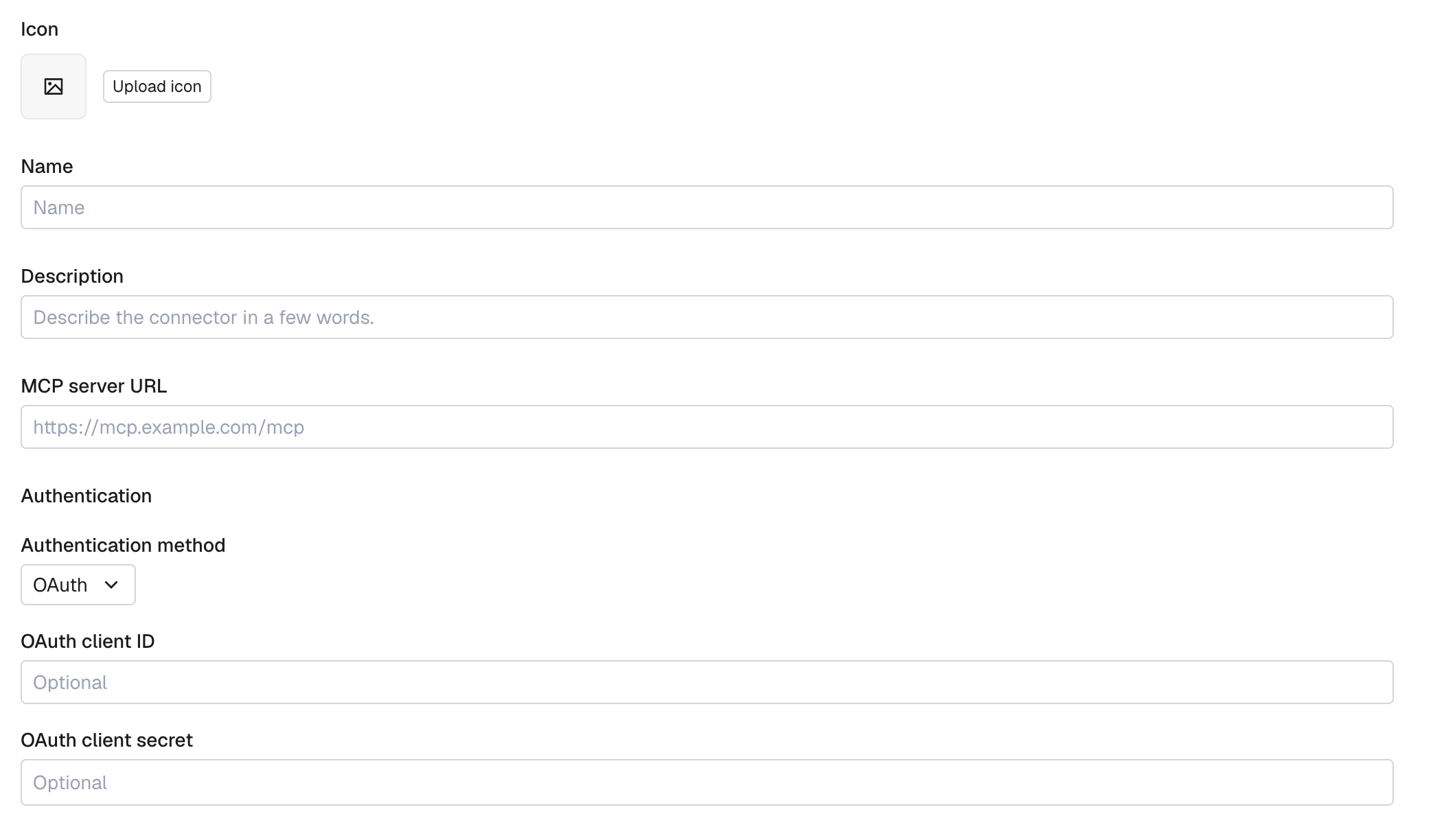
The Icon, Name, and Description will be visible when members of your org are using the App.
Each user of your organization will now see the app on their integrations page. For OAuth-based MCP connections, users will need to individually connect their account by clicking the app and hitting Connect.
Authentication
Custom MCP connectors in Pylon support two authentication patterns:
OAuth — Pylon’s MCP client connects over Streamable HTTP and implements the MCP authorization spec (2025-06-18), using PKCE (RFC 7636) and discovering OAuth endpoints via Protected Resource Metadata (RFC 9728) and Authorization Server Metadata (RFC 8414).
Static token methods — the connector form also supports bearer token,
API-Key,X-Api-Key, and Basic authentication for MCP servers that accept those headers.
For OAuth-based MCP connections, a connector can obtain its OAuth client in one of two ways:
Dynamic Client Registration — if the MCP server advertises a registration endpoint per RFC 7591, Pylon registers itself automatically on the first connect, so no Client ID is required.
Manual Client ID — for servers that don't support dynamic registration, register an OAuth app with the provider yourself and paste the Client ID and optionally Client Secret into the connector. If the connection doesn't work with the Client Secret value, try removing it in both places: the OAuth app registration page, and the Pylon configuration settings.
In either case, each user connects their own account, and tokens are stored encrypted and refreshed automatically.
Can I connect a public MCP server with no authentication?
No. Pylon requires either an OAuth-capable MCP server or a supported static credential. A public MCP server with no authentication and no credential to store cannot be connected.
If the server does not require authentication and does not expose OAuth endpoints, the Connect flow cannot complete. In that case, use Training Data for public documentation, or use a Custom API tool when an API-based integration is the better fit.
What to do instead
If your goal is to make public documentation searchable in Pylon AI features, add the public site as Training Data instead.
If the system does not expose an MCP server you can use, consider a Custom API tool for supported API-based workflows.
Usage
Users can mention Apps in natural language and queries will automatically attempt to pull from your connect MCPs where relevant.

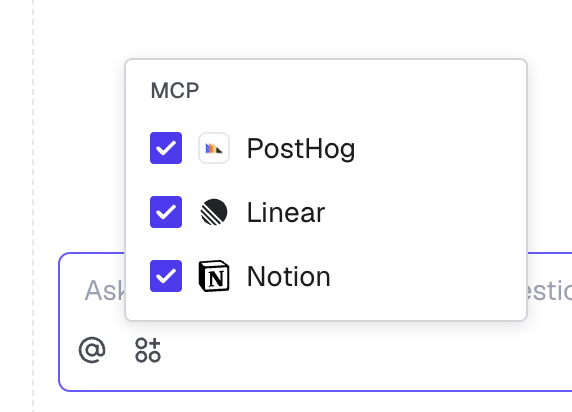
Users can also see which MCPs are connected and in-use from the Apps menu.